
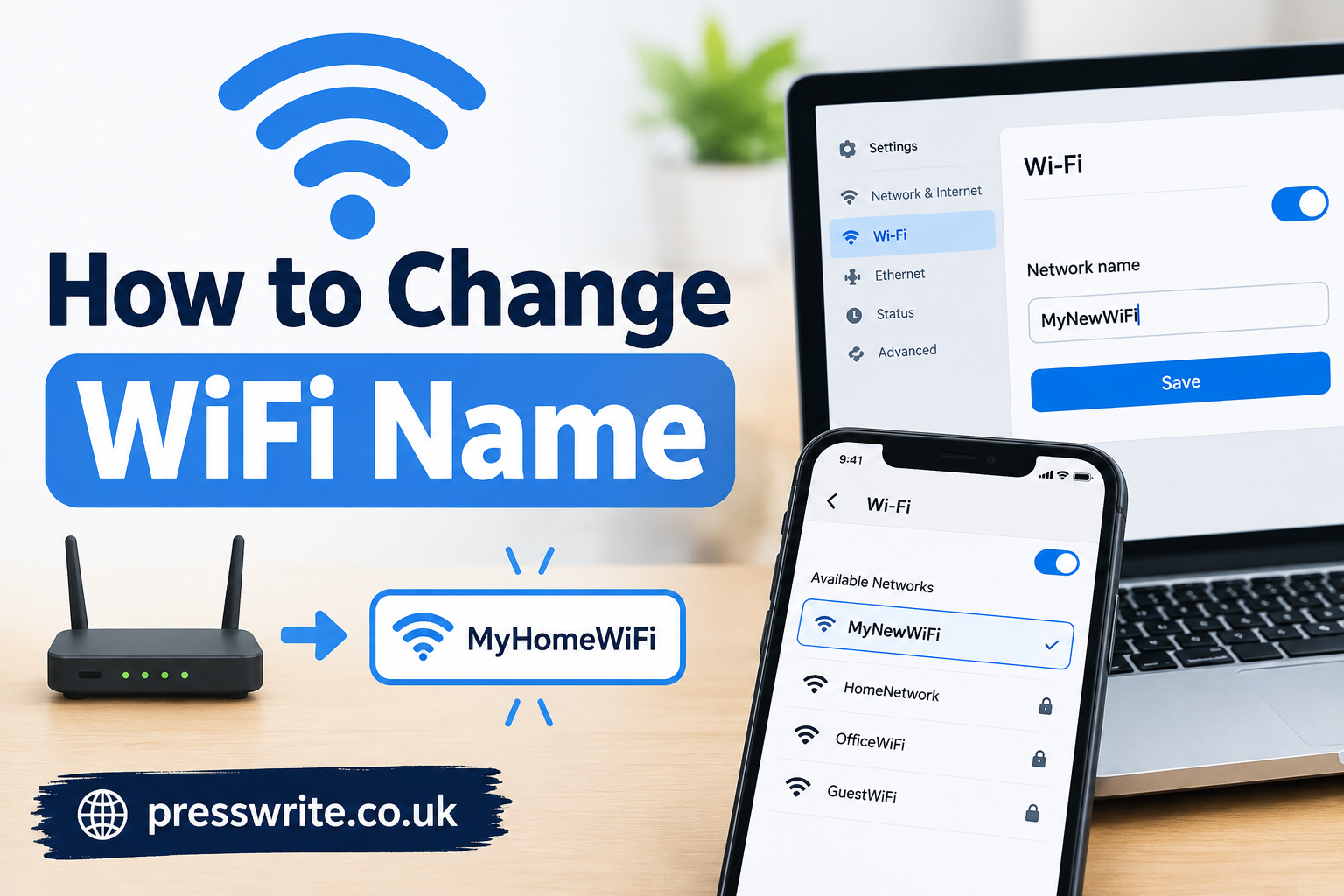
Changing your wifi name feels like a tiny task, but it’s one of those small digital habits that quietly says a lot about how well you manage your home network. Whether you just moved into a new apartment, inherited a router with a factory-default name like “NETGEAR_5G_2341,” or simply want something more personal and secure, learning how to change wifi name settings is easier than most people expect — once you know where to look.
This guide walks you through everything, from the basics of what a wifi name actually does, to step-by-step instructions for different routers, common mistakes to avoid, and answers to the questions people ask most. By the end, you’ll be able to rename your network with confidence, on any device, using any router brand.
Why Your Wifi Name Matters More Than You Think
Most people assume the wifi name — technically called the SSID (Service Set Identifier) — is just a label. In reality, it plays a bigger role than most realize.
The Role of a Wifi Name in Your Home Network
Your SSID is the broadcast identity of your router. Every device searching for a network — your phone, laptop, smart TV, or thermostat — sees this name in its list of available connections. A poorly chosen or default name can:
- Reveal the brand and model of your router, giving attackers a head start if they’re looking for known vulnerabilities
- Make it harder to identify your own network among neighbors’ networks with similarly generic names
- Look unprofessional if you run a small business or rent out a property with guest wifi
A thoughtful, unique name solves all three problems at once, and it takes less than five minutes to set up.
How a Wifi Name Differs From a Network Password
People often confuse the SSID with the wifi password, but they serve very different purposes. The name identifies the network; the password protects access to it. You can change one without touching the other, and doing both periodically is good digital hygiene.
Things to Know Before You Change Your Wifi Name
Before diving into the actual steps, a little preparation saves time and prevents frustration.
Router Login Credentials
To change your wifi name, you’ll need access to your router’s admin panel, which almost always requires a username and password. These are usually:
- Printed on a sticker on the back or bottom of the router
- Found in the router’s original packaging or manual
- Set to a common default like “admin/admin” or “admin/password” if never changed
If you’ve personally changed these credentials before and forgotten them, most routers allow a factory reset using a small pinhole button.
Wifi Naming Rules and Restrictions
Router firmware typically enforces a few basic rules for SSIDs:
| Rule | Typical Limit |
| Maximum characters | 32 characters |
| Allowed characters | Letters, numbers, spaces, some symbols |
| Case sensitivity | Yes, in most firmware |
| Special characters restricted | Emojis and certain symbols may not be supported |
| Duplicate names | Allowed, but not recommended near other networks |
Keeping these limits in mind helps you avoid an error message when you try to save your new name.
How to Change Wifi Name Using a Router’s Web Interface
This is the most universal method and works across almost every router brand, regardless of age or manufacturer.
Step 1 — Find Your Router’s IP Address
On most devices, you can find this by opening a command prompt or terminal and typing ipconfig (Windows) or ifconfig / netstat -nr (Mac). Look for “Default Gateway” — this is your router’s local IP address, often something like 192.168.1.1 or 192.168.0.1.
Step 2 — Log Into the Router Admin Panel
Type that IP address into your browser’s address bar and press enter. You’ll be prompted for a username and password — enter your router’s admin credentials, not your wifi password.
Step 3 — Locate the Wireless Settings
Once inside, look for a tab or menu labeled “Wireless,” “Wifi Settings,” or “Network.” This is where the core configuration for your network lives.
Step 4 — Change the SSID and Save
Find the field labeled SSID or Network Name. Clear the existing text, type your new wifi name, and click “Save” or “Apply.” Most routers will briefly restart the wireless radio, disconnecting all devices for a few seconds before they reconnect using the new name.
How to Change Wifi Name Using a Mobile App
Many modern routers — including mesh systems like Google Nest Wifi, Eero, and TP-Link Deco — are designed to be managed entirely through a smartphone app instead of a browser.
- Open the router’s companion app (Google Home, Eero, Deco, Netgear Nighthawk, etc.)
- Navigate to network or wifi settings
- Tap on the current network name
- Enter the new name and confirm
This method is often more beginner-friendly since apps guide you visually through each step, and changes typically apply instantly across all connected access points in a mesh setup.
How to Change Wifi Name for Popular Router Brands
Different manufacturers organize their settings menus slightly differently. Here’s a quick reference table for popular brands.
| Router Brand | Default IP Address | Menu Path to Change SSID |
| TP-Link | 192.168.0.1 or 192.168.1.1 | Wireless → Wireless Settings |
| Netgear | 192.168.1.1 | Wireless Setup |
| D-Link | 192.168.0.1 | Setup → Wireless Setup |
| Asus | 192.168.1.1 | Wireless → General |
| Linksys | 192.168.1.1 | Wireless → Basic Wireless Settings |
| Xfinity/Comcast | 10.0.0.1 | Gateway → Connection → Wifi |
If your router isn’t listed here, checking the manufacturer’s support page with your exact model number will give you precise instructions.
Common Mistakes to Avoid When Renaming Your Wifi
Even a simple task like this has a few pitfalls worth knowing in advance.
- Using personal information — Avoid names that include your address, full name, or apartment number
- Forgetting to reconnect devices — Every device will need to rejoin the network under the new name
- Overcomplicating the name — Overly long or symbol-heavy names can cause display issues on some devices
- Changing the name and password at the same time without noting both — This can lock you out temporarily if you forget the new password
- Ignoring the 5GHz and 2.4GHz bands separately — Some routers broadcast two networks; make sure you rename both if you want consistency
Does Changing Wifi Name Affect Connected Devices?
Yes, temporarily. When you save a new SSID, the router restarts its wireless broadcast, which briefly disconnects every device using that network — including smart home gadgets, streaming devices, and printers. Most devices reconnect automatically once you select the new network name and, if prompted, re-enter the password. Devices with saved wifi profiles (like smart plugs or older cameras) sometimes require manual reconfiguration since they were programmed to remember the old name specifically.
Tips for Choosing a Good Wifi Name
A great wifi name balances personality, memorability, and privacy.
- Keep it short enough to recognize at a glance in a crowded list of networks
- Avoid anything that identifies your identity or location
- Consider a bit of humor — it makes the network list less boring for guests
- Steer clear of offensive or inappropriate names, especially if children or guests will see the list
- If you manage multiple networks (main + guest), use clearly distinct names to avoid confusion
Wifi Name vs Wifi Password: What’s the Difference
It’s worth repeating this distinction clearly, since it’s one of the most common points of confusion for people setting up or troubleshooting a home network.
| Aspect | Wifi Name (SSID) | Wifi Password |
| Purpose | Identifies the network | Grants access to the network |
| Visibility | Public, visible to nearby devices | Hidden, required to connect |
| Change frequency | Rarely necessary | Recommended periodically |
| Security impact | Indirect (avoids revealing router info) | Direct (protects against unauthorized access) |
Understanding this difference helps you make smarter decisions the next time you’re asked to “reset” your wifi — you’ll know exactly which setting needs adjusting.
Frequently Asked Questions
Does changing my wifi name change my password too? No. These are separate settings. Changing one has no effect on the other unless you manually update both.
Will I need to reconnect all my devices after changing the wifi name? Yes, every device will show the network under its new name, and you’ll need to select it and enter the password again if prompted.
Can I change my wifi name from my phone without a computer? Absolutely. Most modern routers offer a companion app that lets you manage wifi settings entirely from a smartphone, without ever opening a browser.
Is there a limit to how many times I can change my wifi name? No technical limit exists. You can change it as often as you like, though frequent changes may be inconvenient for other household members or guests.
What happens if I forget my router’s admin login? You can perform a factory reset using the small reset button on the router, though this will also erase other custom settings, including your wifi password.
Should I hide my wifi name (SSID) instead of renaming it? Hiding the SSID is a separate privacy option some routers offer. It doesn’t add meaningful security, since the network can still be detected with basic tools, and it often makes reconnecting new devices more difficult.
Final Thoughts
Renaming your wifi network is a small action with outsized value — it sharpens your network’s identity, nudges out unnecessary security risks, and lets you inject a bit of personality into an otherwise invisible part of your home. Once you’ve walked through the process once, it becomes second nature, the kind of quiet technical fluency that makes managing every other connected device in your home just a little easier. The next time someone asks how to change wifi name settings on their own router, you’ll be the one explaining it to them.
